MFA (Multi-Factor Authentication)
This article describes how to enable or disable MFA on an operator account. This will become available after migrating the account to the new authentication platform Migrate Account.
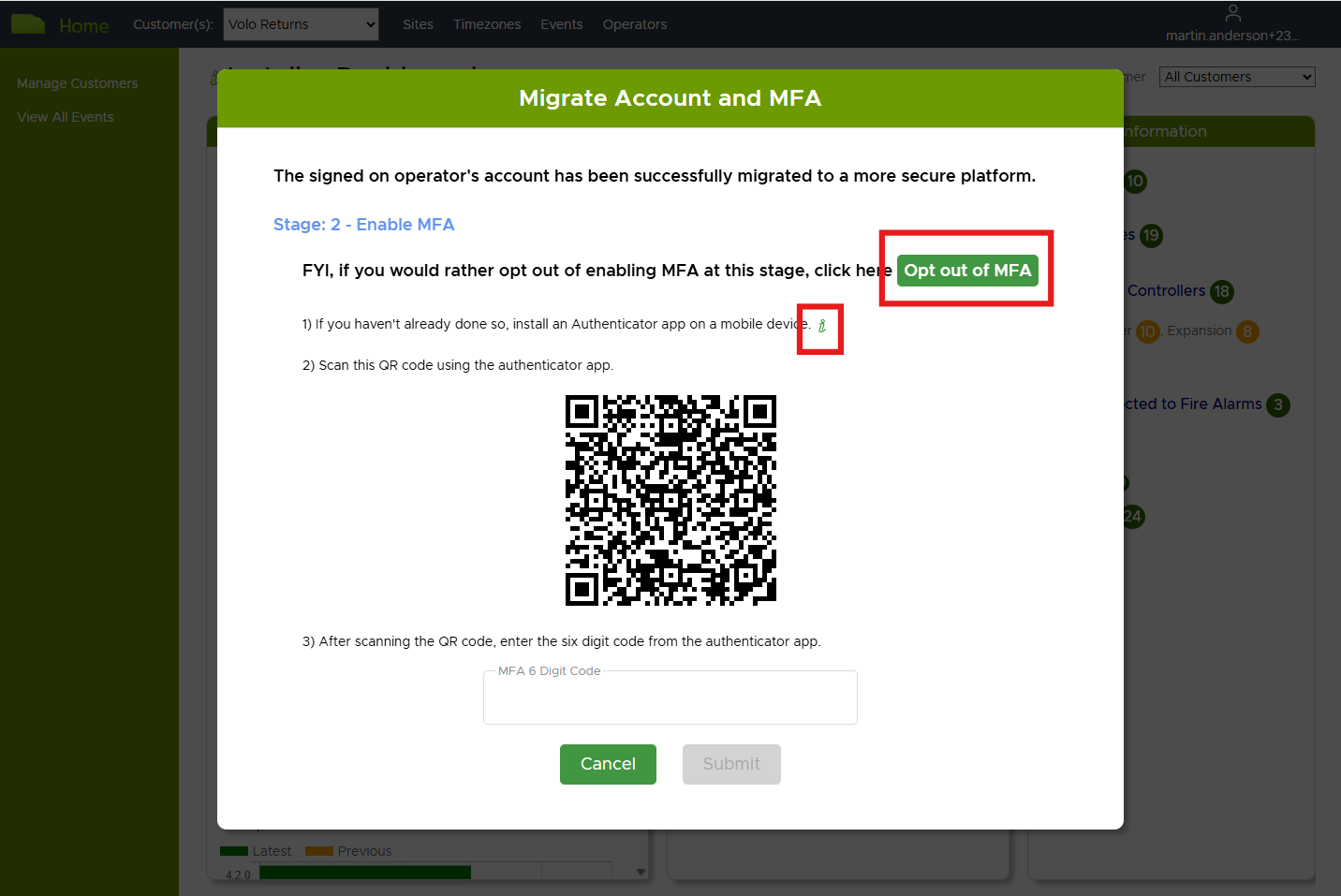
If you do not want to enable MFA, then click on Opt out of MFA.
If you do want to enable MFA:
- Install an Authenticator app on your mobile device. Click on the
iicon for Installation Instructions. - Using the Authenticator app, scan the QR code.
- Enter the 6-digit code from the Authenticator app into the VOLO website and click
Submit.
If the process is successful, you will see a confirmation message.
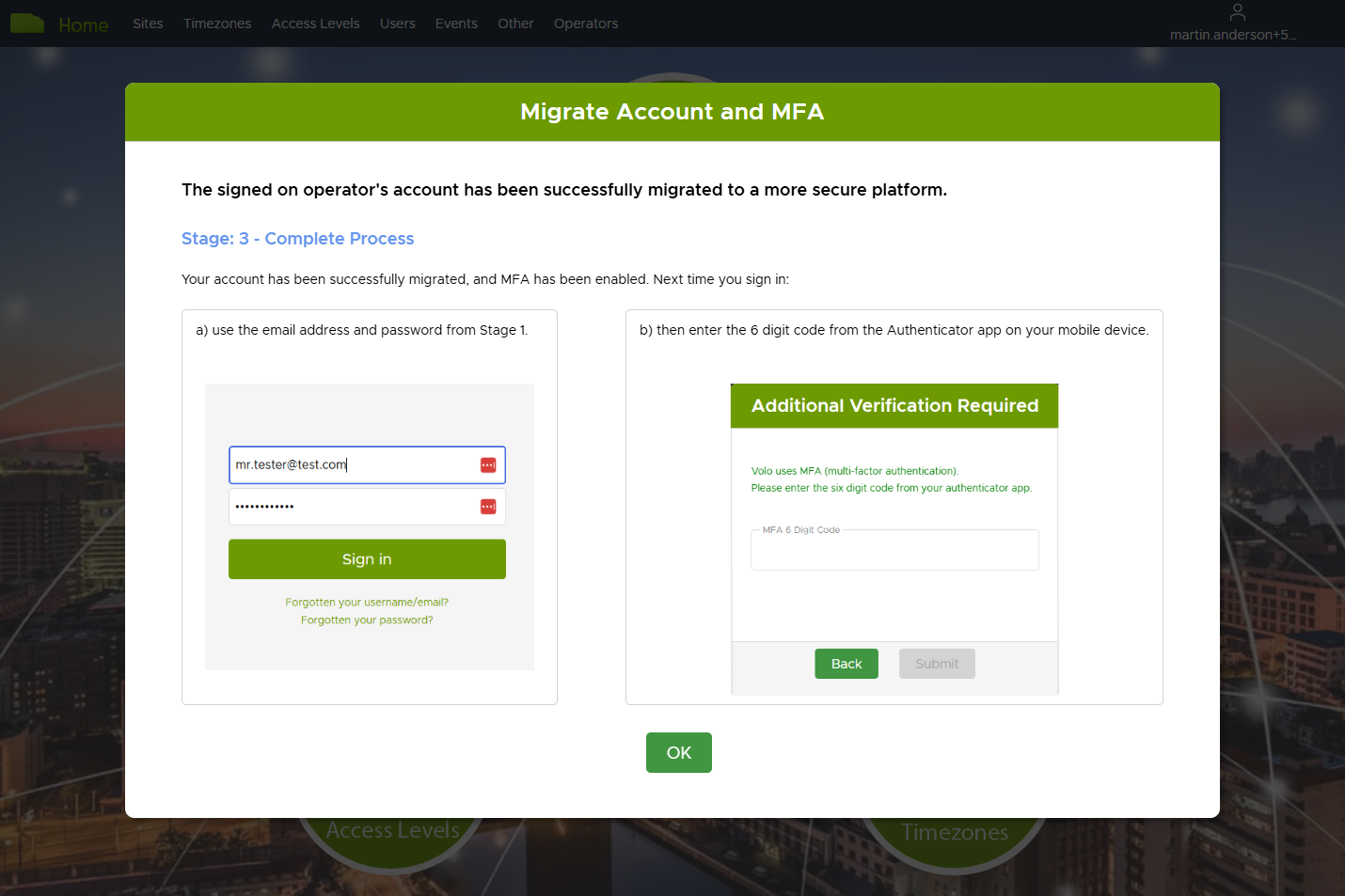
MFA is now enabled for your account.
When you next sign in, use your email address and password, followed by a 6-digit code from the Authenticator app.
Enabling or Disabling MFA
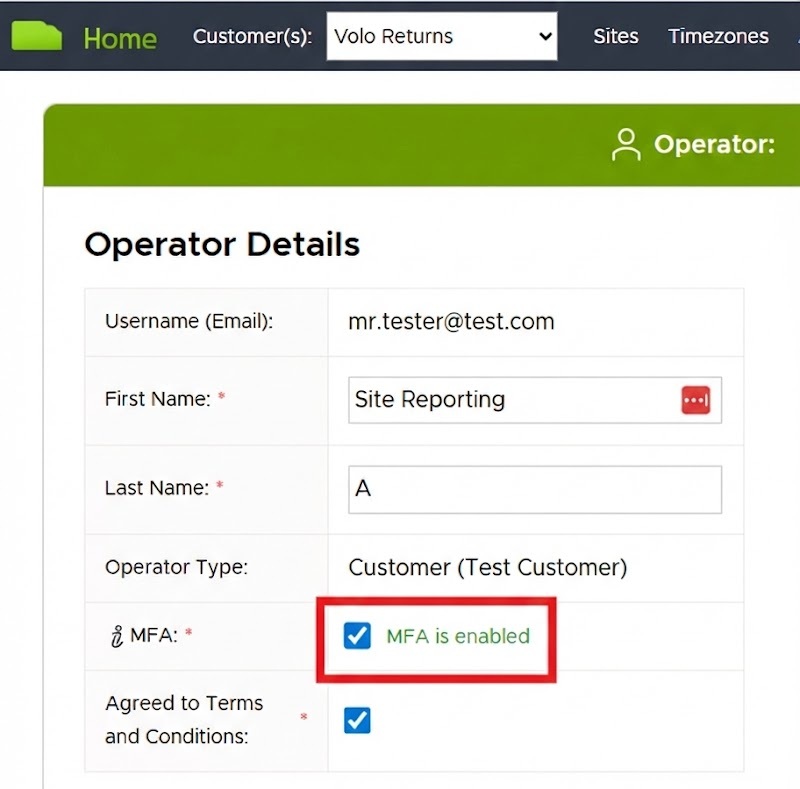
If at any time in the future you want to disable MFA, go to the Operator Details page and deselect the MFA checkbox.
caution
Disabling MFA will mean you are no longer required to enter a 6-digit code when signing in. For the most secure experience with VOLO, we recommend enabling MFA.
Checking Operators' Migration / MFA status
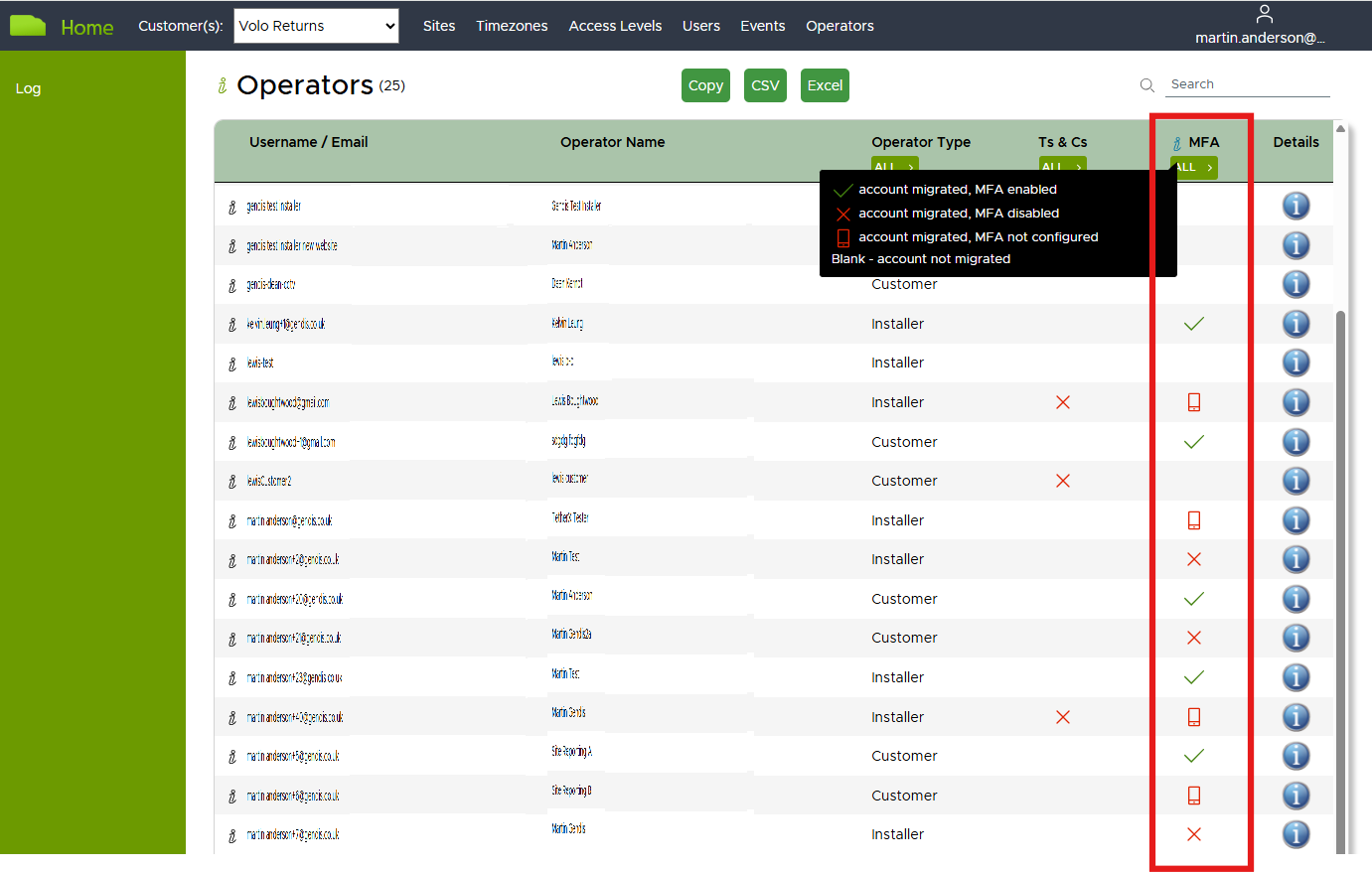
If you have the necessary permissions, you can check the migration or MFA status of operators by navigating to the
Operators page and looking at the MFA column.
info
The icons in the MFA column indicate the status of MFA for each operator:
- Blank - the operator account has not been migrated
- Smartphone icon - the operator account has been migrated, but MFA has not been configured
- Red cross - the operator account has been migrated, MFA has been configured, but it has been disabled
- Green tick - the operator account has been migrated, MFA has been configured and it is enabled